
Sharp H5-01 Code
Hello! If you’re reading this page your copier is in need of some help! If you are fed up with the jamming, now would be a good time to evalute some options for upgrading to something that won’t give you so much trouble. Request a quote or consultation from the button to the right.
How to Clear H5-01 Trouble Code
H5-01 is displayed if your copier has had 5 paper jams in rapid succession. It is probably in need of some TLC from a Sharp certified technician. In any event, the code can be cleared out and hopefully once the cause of the jams has been rectified you can continue to use your copier.
- Remove the jammed paper. Depending on the speed of your machine, you may be looking for more than one sheet. Follow the instructions on the screen of the copier to locate the jams.
- Enter the Simulation Mode for your copier. Depending on the age of your machine you’ll have 1 of 3 panels. We’ll show you how to enter the simulation mode with each type.
Panel Style 1: BP Series
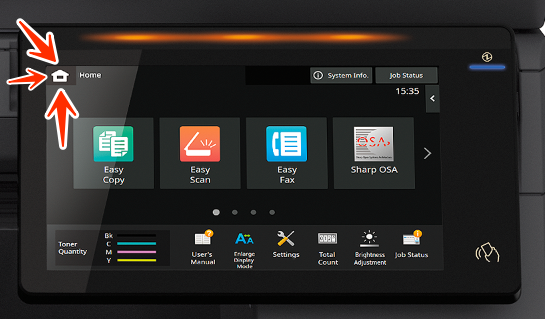
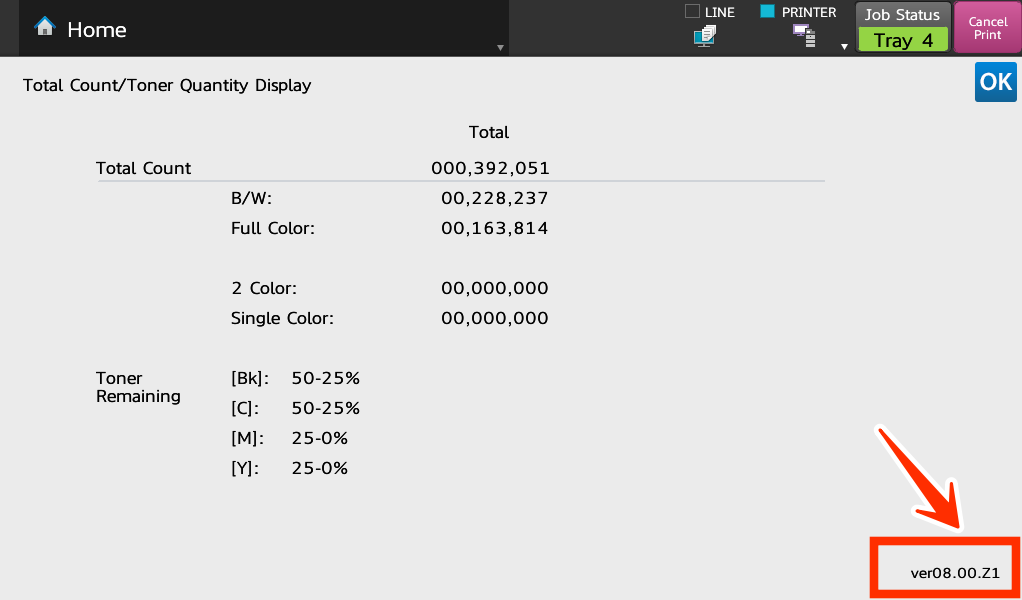
This is the current production model touch screen. Your copier model should begin with BP. You’ll have a 10.1 inch touch panel with a “Home” button in either the top-left corner, or the top-right corner of the display itself. It is shaped like a house – this is the button we’ll use. To enter the simulation mode with this style, double-tap the house button, then tap the version number in the bottom-right corner of the Total Count pop-up. It doesn’t look like a button, but it will open the simulation menu.
PANEL STYLE 2:
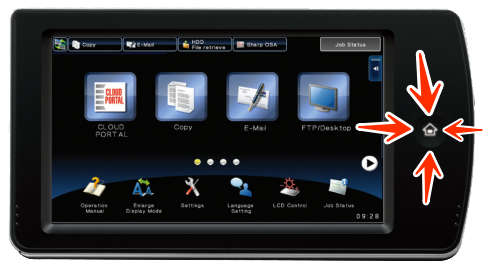
The generation previous to the current machines will have a 10.1 inch touch panel with a “Home” button on the right side of the touch screen. It’s shaped like a house, this is the button we’ll use. To enter the simulation mode with this style, double-tap the house button, then tap the version number in the bottom-right corner of the Total Count pop-up. It doesn’t look like a button, but it will open the simulation menu.
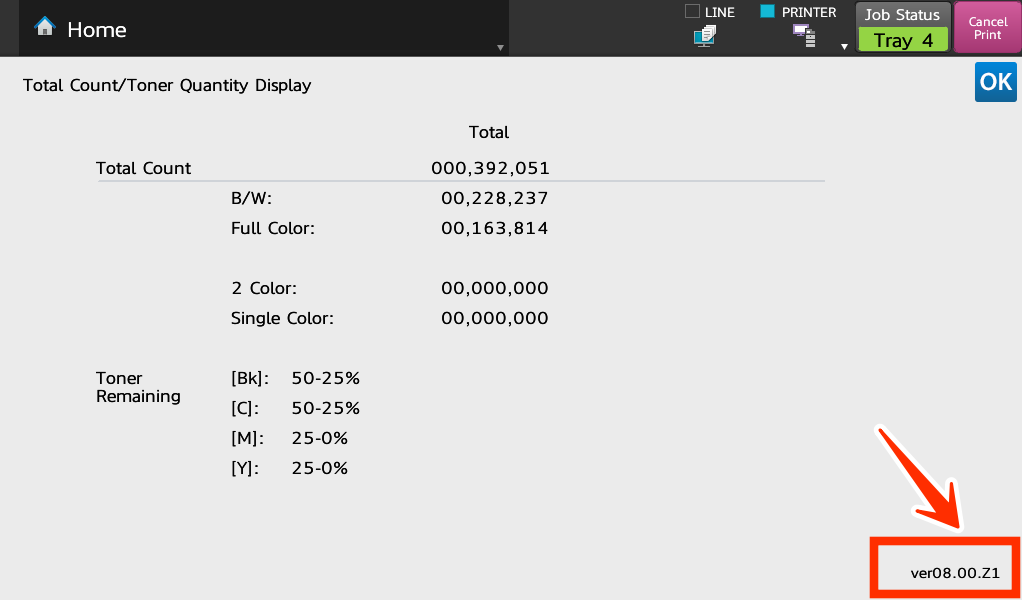
PANEL STYLE 3:
The oldest models still in operation will have this panel. If your panel looks like this one with physical buttons on the right side of the touch screen, it may be time to consider upgrading your copier since parts for repair are probably not going to be available. To access the simulation mode for this style of panel simply touch 9 * 8 # 7 in rapid succession.
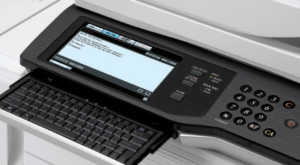
When the 10-key pad is displayed after tapping the version number, tap 9 * 8 # 7 in rapid succession.

On the next screen, tap the button that says No. 14 Trouble Cancellation(Other)

In the No. 14 menu, tap Execute, tap Yes and tap the Exit icon.

At this point the machine will finish the simulation and reboot itself. If you have successfully removed all of the paper from the machine, the H5-01 will have cleared. If there is still paper jammed somewhere in the paper path you’ll need to remove it and run through the procedure to clear the code again.
VIDEO ON HOW TO CLEAR H5-01 TROUBLE CODE ON SHARP
This video is a bit older, but the steps once you’re in the simulation mode (outlined how to reach for each type of panel above) are the same!