- Open the device web GUI by typing the IP address into a web browser
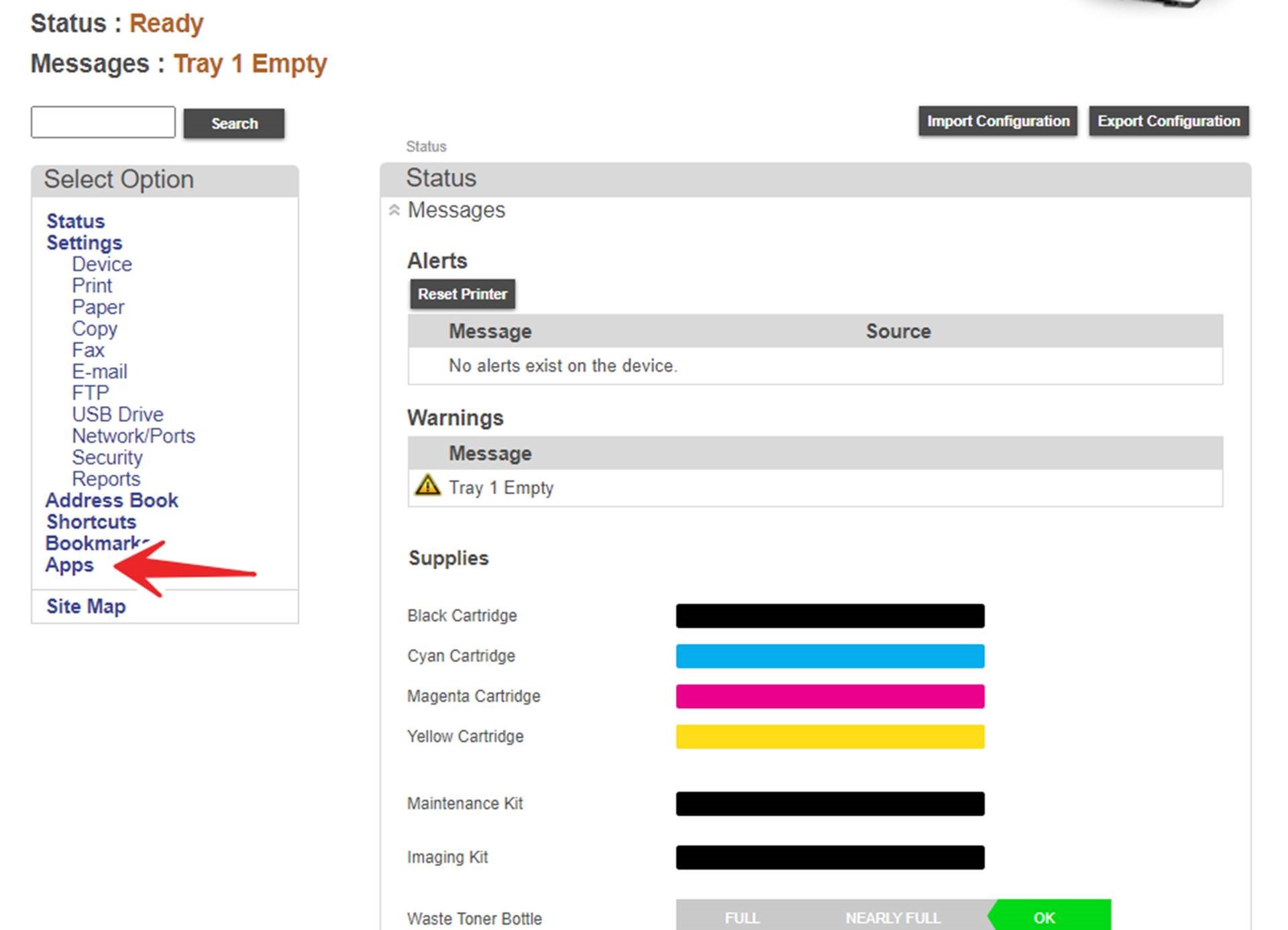
- On the left menu, click Apps
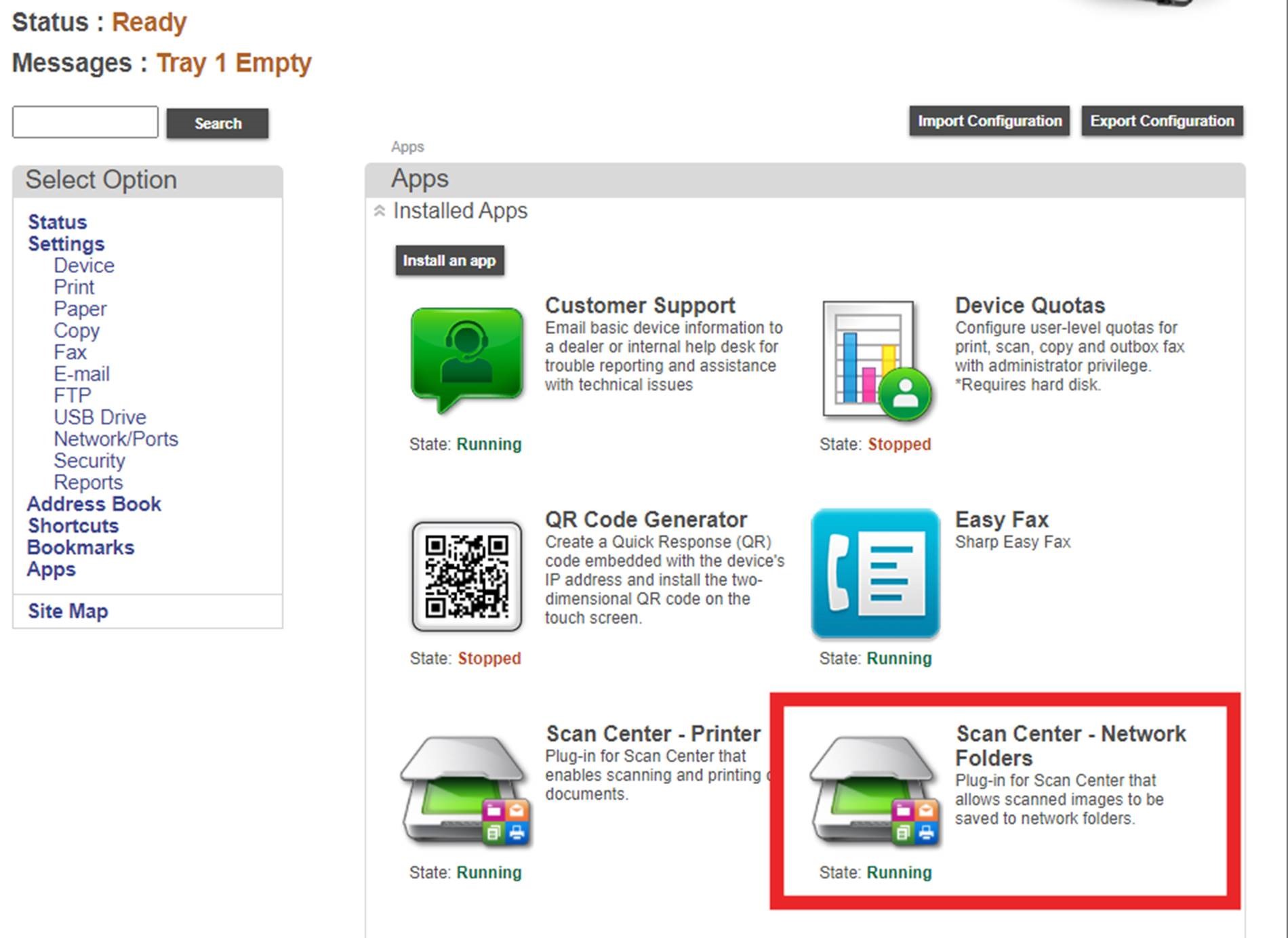
- Click Scan Center-Network Folders
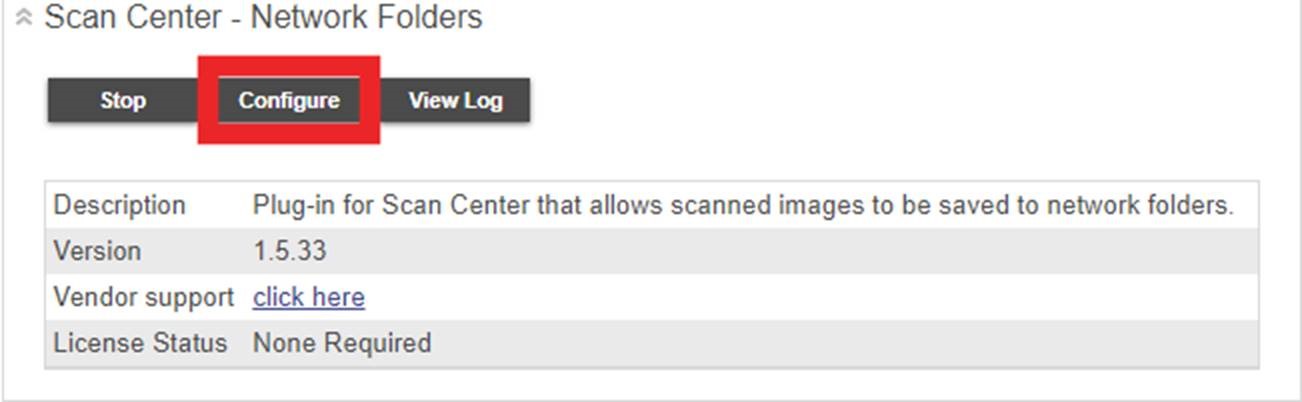
- Click Configure
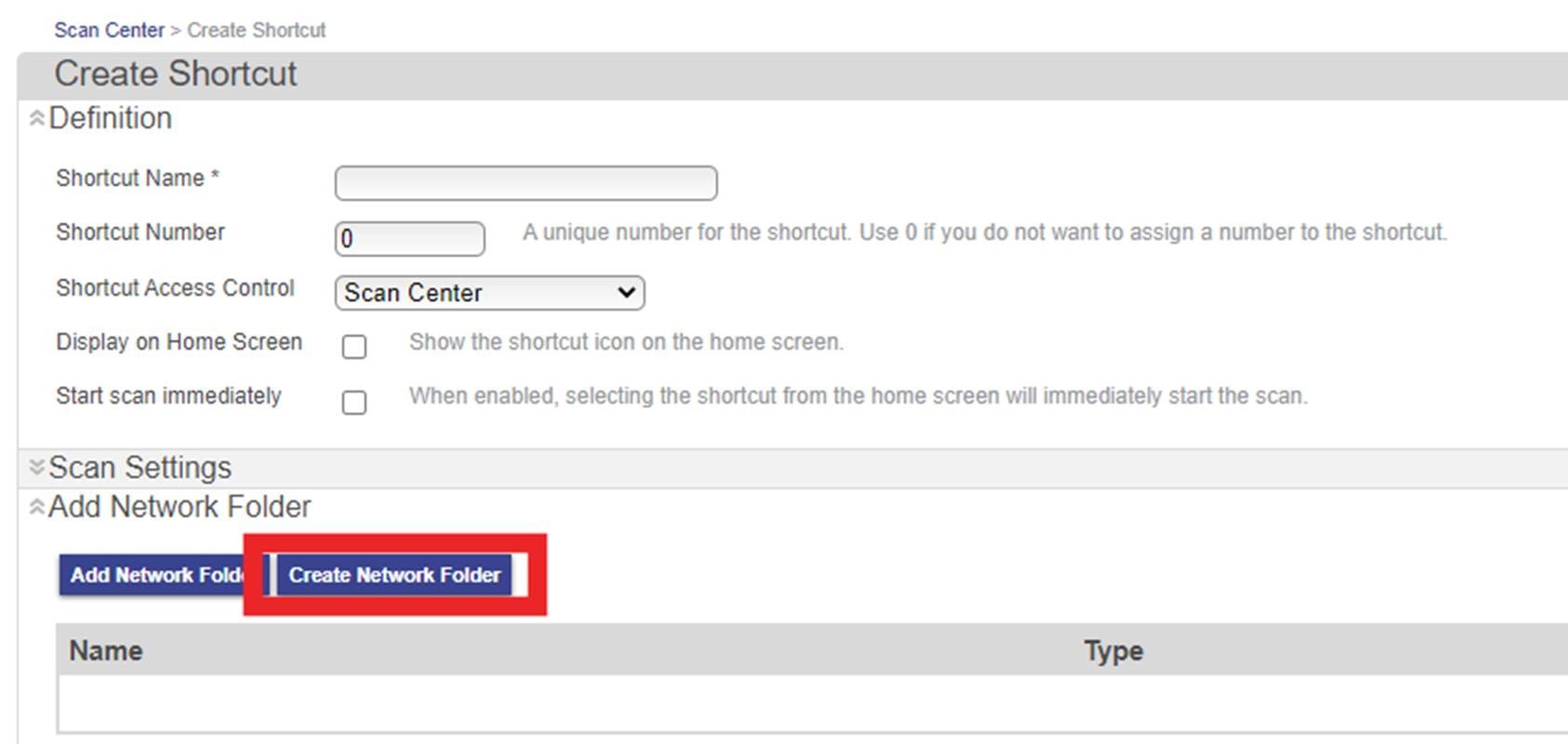
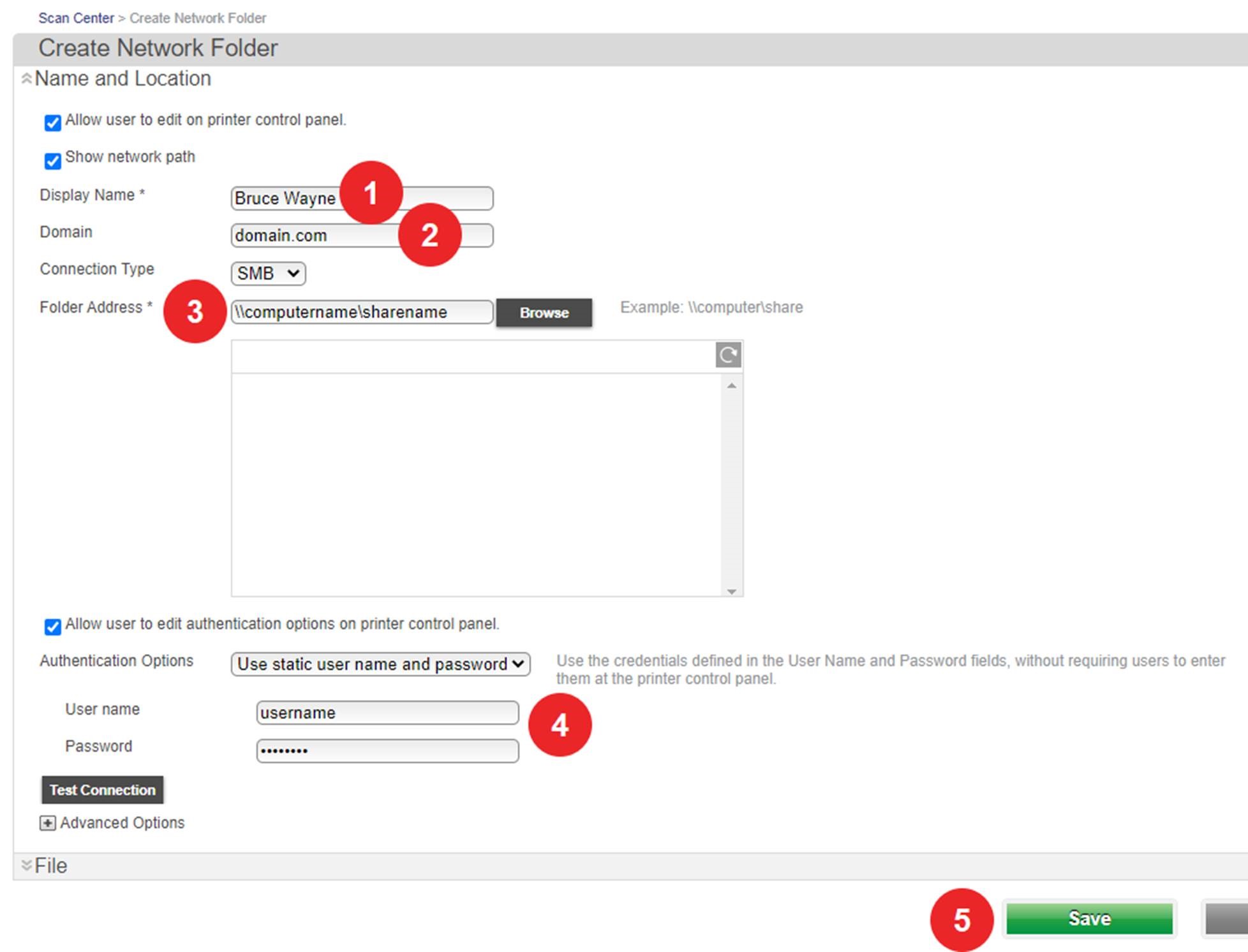
- In the new tab, click Create Network Folder
- Enter Display Name as the user or department name, the domain, and the shared folder address. Change authentication options to Use static user name and password and enter a username and password that has access to the shared folder, then click Save.
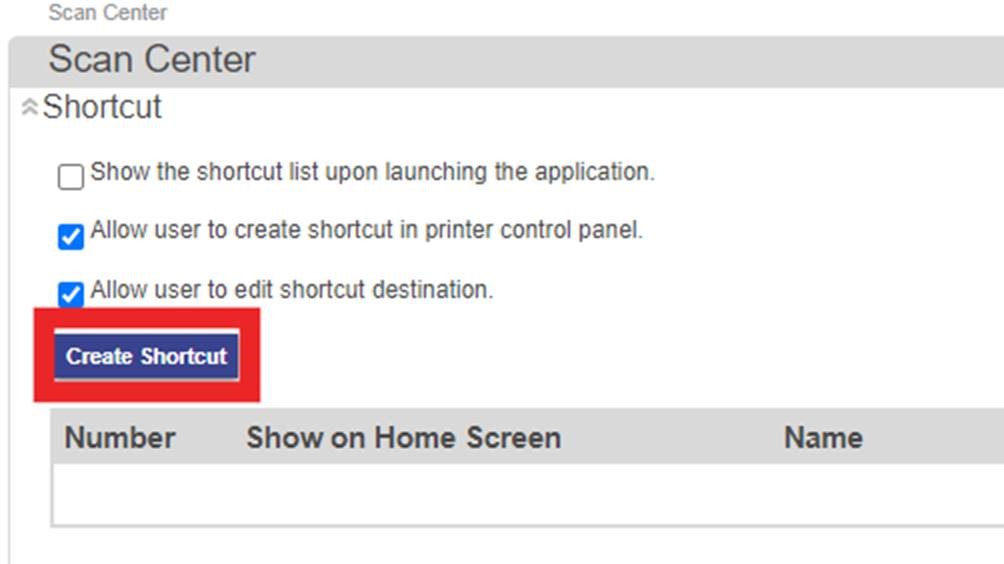
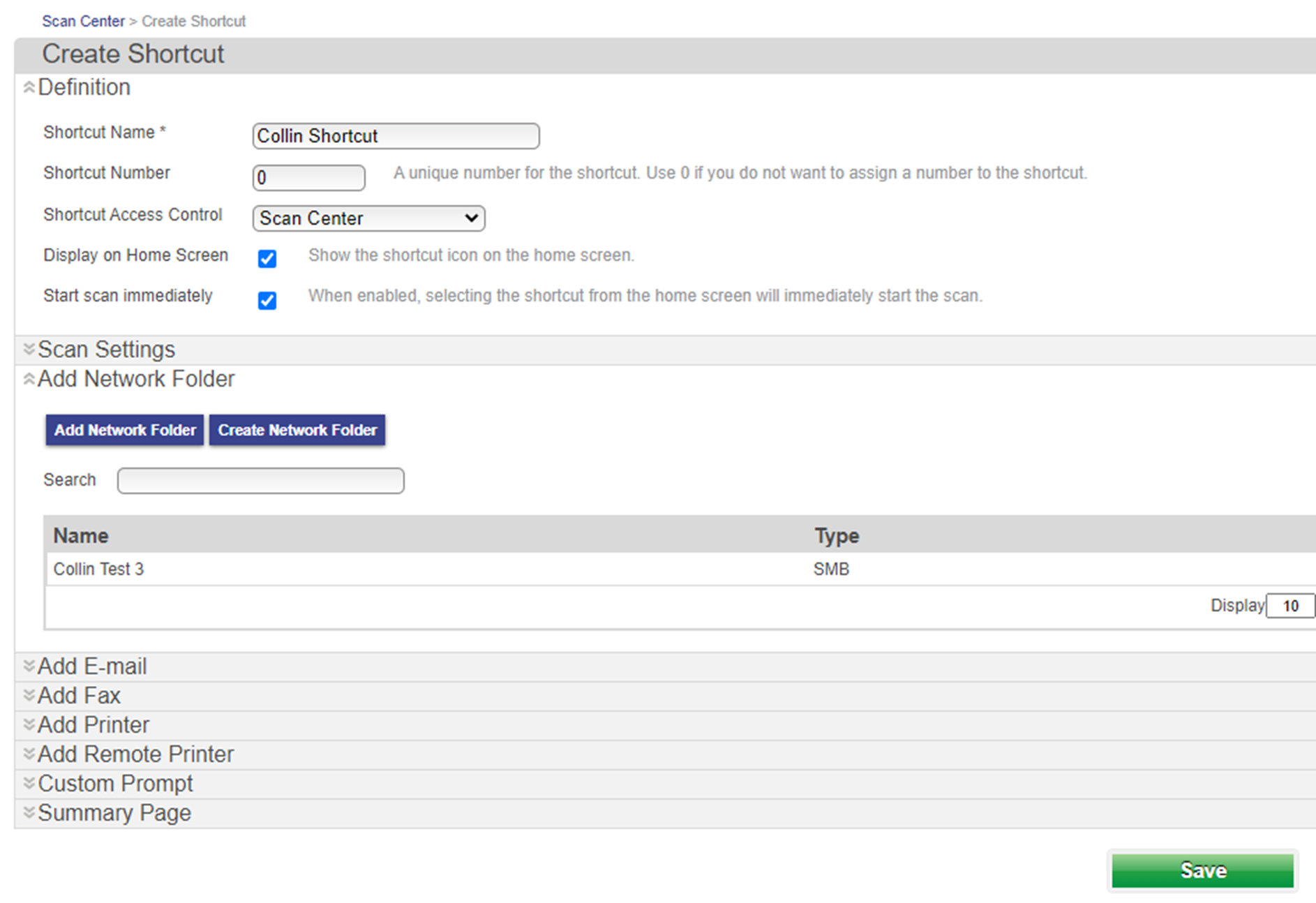
- Under Scan Center click Create Shortcut
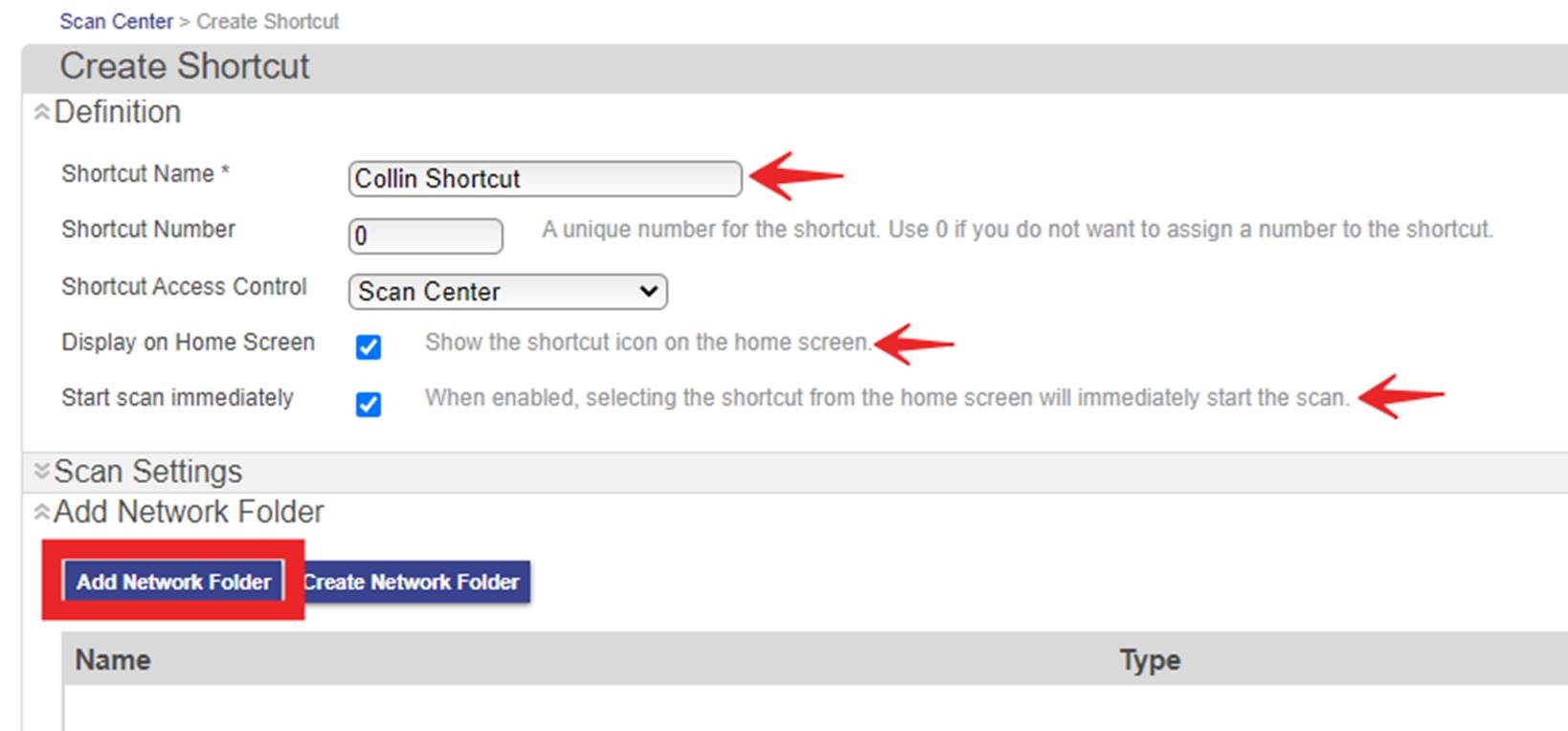
- Shortcut Name will be the same as Display Name from the previous step, check both the Display on Home Screen and Start scan immediately boxes, then click Add Network Folder
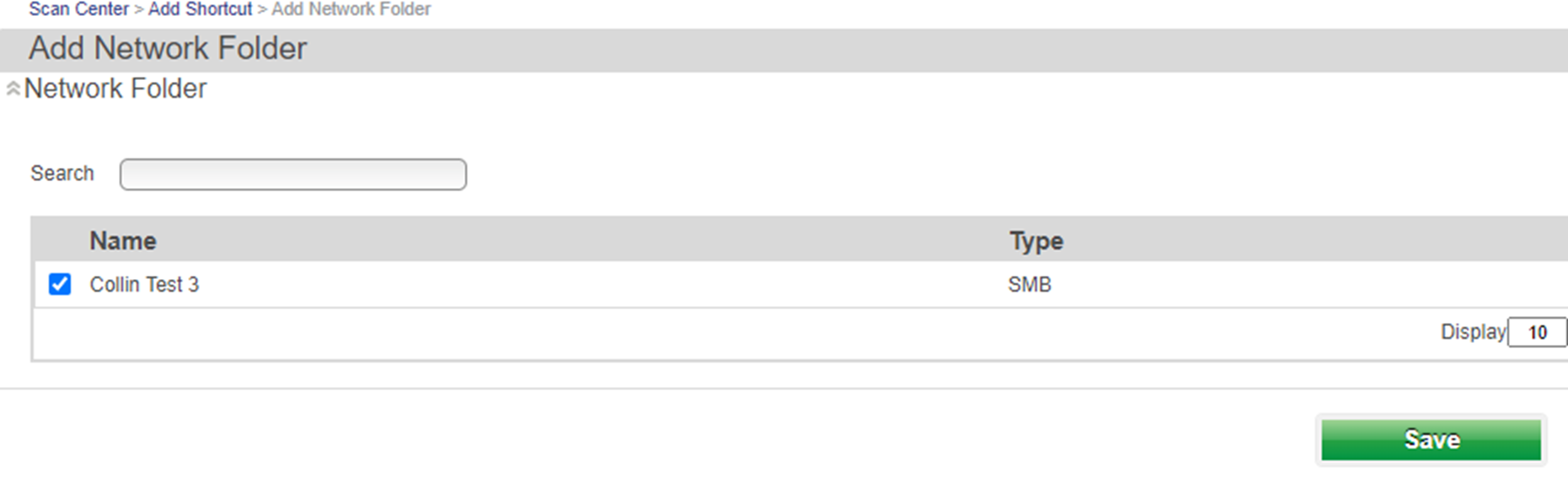
- Check the network folder you create earlier, then click Save.
- Click Save again on the Create Shortcut page.
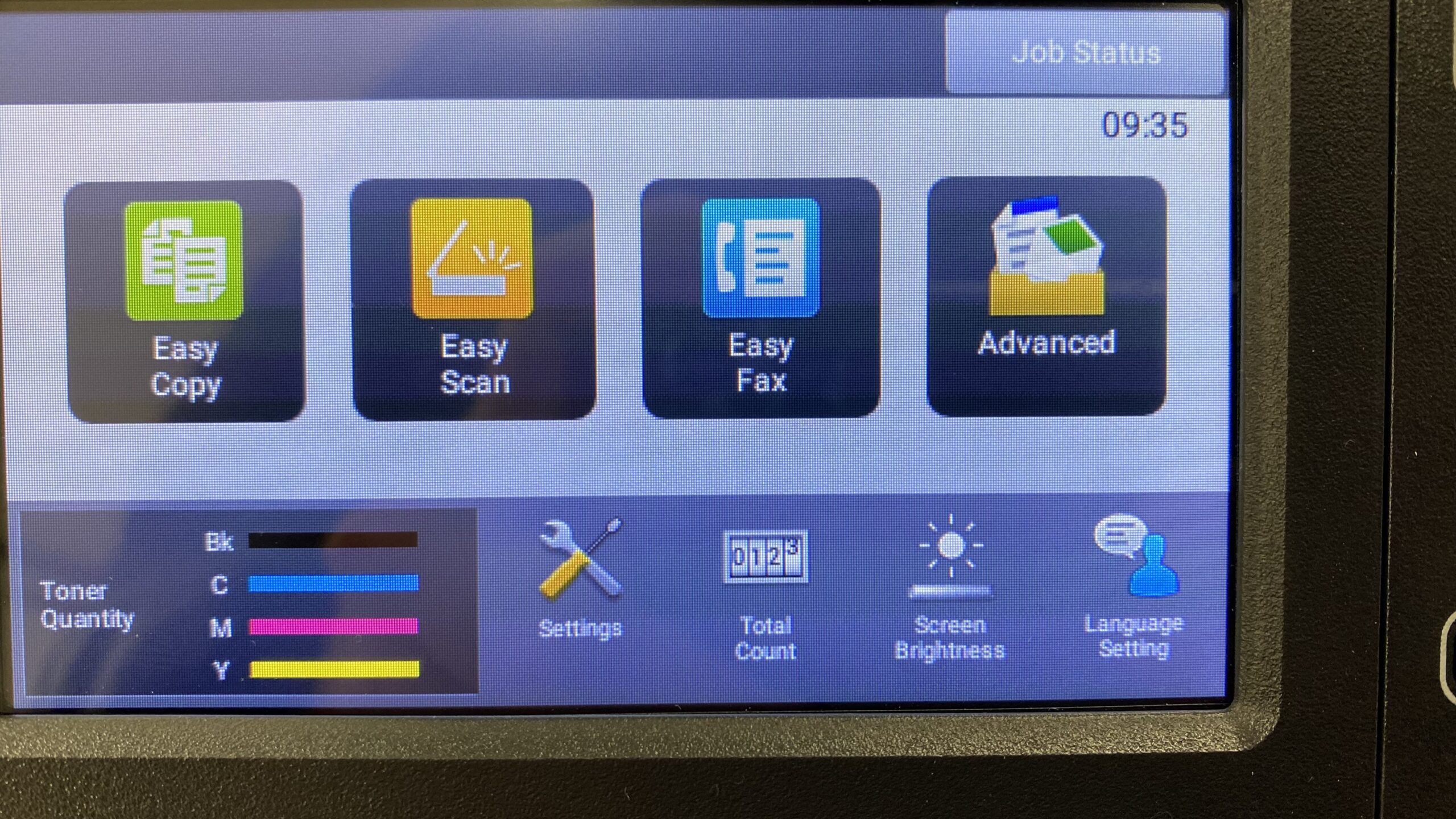
- To scan from the panel, load your originals head first into the document feeder, then touch the Advanced button
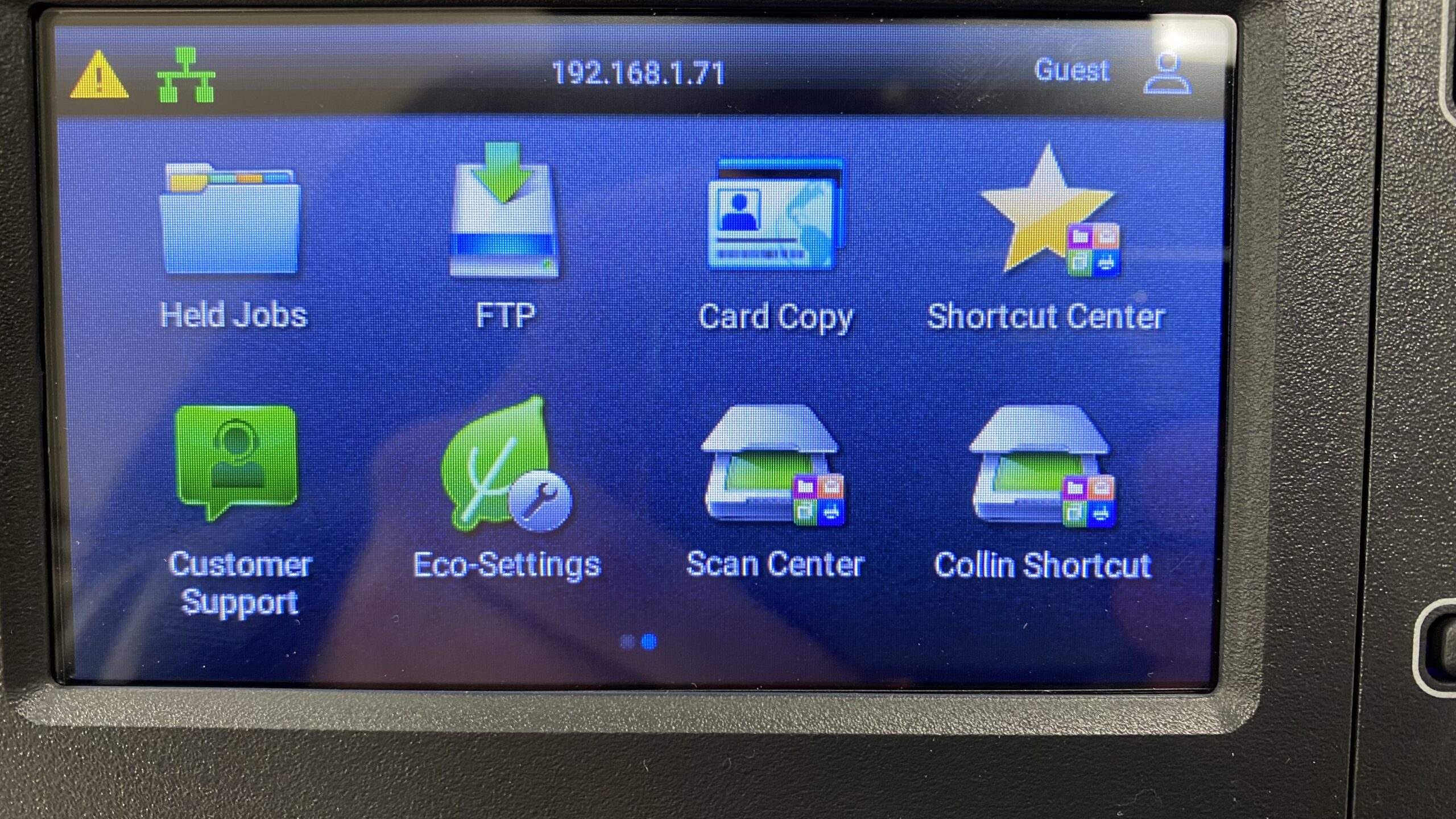
- Swipe to the left to move the menu to the second page, then touch the Shortcut key you just created to scan your document.

281-645-4036