If you manage a Sharp copier or multifunction printer (MFP) in your Houston, Texas office, you already know how powerful these machines can be. But did you know you can control exactly when your Sharp copier is allowed to print? Deep inside the Advanced tab of your Windows print driver lies a simple but remarkably useful setting called “Available From.” This feature lets you define a specific time window during which the printer will accept and process print jobs — and ignore everything else.
For Houston businesses dealing with high print volumes, shared office environments, or strict compliance requirements, this setting can be a game-changer. Let’s walk through what it does, how to set it up on your Sharp copier, and why it matters for your bottom line.
What Is the “Available From” Setting?
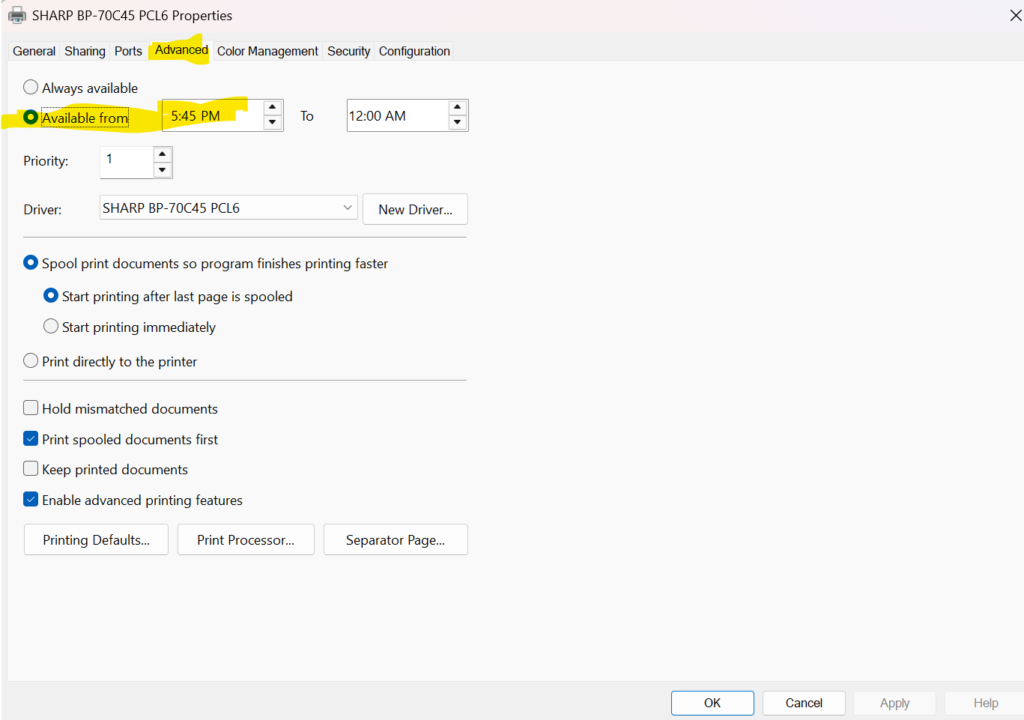
The “Available From” setting is found in the Advanced tab of your Sharp printer’s driver properties in Windows. It allows IT administrators and office managers to schedule a specific start and end time during which a printer is available to accept print jobs.
Outside of the defined time window, print jobs sent to the printer are held in the print queue and will not process until the printer becomes “available” again. The print jobs are not lost — they are simply queued and released automatically when the available window opens.
Think of it as a digital curfew for your Sharp MFP.
Why Houston Businesses Should Care
Houston is home to a diverse and fast-moving business community — from energy companies in the Galleria corridor to medical practices in the Texas Medical Center and logistics firms near the Port of Houston. Across all of these industries, controlling print activity has real business value:
- Reduce after-hours printing waste. Employees (or unauthorized users) printing sensitive documents, personal files, or large jobs after hours drives up toner and paper costs.
- Protect confidential information. Limiting printing to business hours reduces the risk of sensitive documents sitting unattended in the output tray overnight.
- Manage shared printer resources. In multi-department offices, time-based printing rules help ensure fair access and prevent one team from monopolizing the printer during peak hours.
- Support compliance and audit trails. Industries like healthcare, legal, and finance benefit from restricting print activity to auditable business hours.
- Extend your Sharp copier’s lifespan. Reducing unnecessary print cycles means less wear on drums, fusers, and other consumable components.
Step-by-Step: How to Set the “Available From” Time on a Sharp Copier Driver
Follow these steps to configure the time restriction in your Sharp print driver on a Windows PC. Note that you will typically need administrator rights on the print server or local machine to change these settings.
Step 1: Open Devices and Printers
- Click the Start menu and open Control Panel (or search for “Printers” in the Windows search bar).
- Select Devices and Printers.
- Locate your Sharp copier in the list of installed printers.
Step 2: Access Printer Properties
- Right-click on your Sharp copier and select Printer Properties (not “Printing Preferences” — you need the full Properties dialog).
Step 3: Navigate to the Advanced Tab
- In the Printer Properties dialog, click on the Advanced tab at the top of the window.
Step 4: Set the “Available From” Time
- At the top of the Advanced tab, you will see a section labeled Availability. By default, it is set to Always Available.
- Select the radio button next to Available From.
- Use the time selector fields to enter your desired start time (e.g., 8:00 AM) and end time (e.g., 6:00 PM).
- Click Apply and then OK to save your settings.
Pro Tip: If you are managing a Sharp copier on a Windows print server in a networked Houston office, apply these settings at the server level so they apply consistently to all users who print to that queue.
Real-World Use Cases for Houston Businesses
Medical Offices & Houston Healthcare Facilities
HIPAA compliance requires that protected health information (PHI) not be left unattended. Restricting your Sharp copier to print only during staffed hours (e.g., 7:00 AM – 7:00 PM) ensures no patient records are sitting in the output tray when the office is closed.
Law Firms in the Houston Galleria & Downtown Areas
Legal documents and case files are highly sensitive. Using the Available From setting ensures your Sharp MFP only processes print jobs during business hours, reducing the risk of confidential documents going unnoticed after the building empties out.
Energy & Oil Field Support Companies
With round-the-clock operations, some Houston energy companies need to prevent non-essential departments from printing large-volume jobs during peak shift changes. Time-based print scheduling through the Advanced driver settings is a clean, low-cost solution that requires no additional software.
Schools & Educational Institutions
Houston-area schools and universities can use the Available From setting to limit student printing to class hours, preventing late-night print queues from backing up shared Sharp copiers in computer labs and libraries.
Important Things to Know Before You Enable This Setting
- Jobs are held, not deleted. Print jobs sent outside the available window go into the queue and will print automatically when the availability window opens. Users should be informed of this behavior.
- This is a Windows-level setting. The “Available From” function is managed through Windows Printer Properties, not through the Sharp copier’s touchscreen panel or web interface.
- Administrator rights are required. Only users with appropriate permissions can change printer availability settings. In a networked environment, this is typically managed by your IT team or Sharp-authorized dealer.
- Works best with a dedicated queue. For maximum control, consider setting up a separate print queue for time-restricted printing. This allows you to maintain an unrestricted queue for urgent, administrator-level jobs.
- Pair with Sharp’s built-in user authentication. Many Sharp MFP models support user authentication and department codes. Combining time-based availability with user-level access controls gives you even more granular oversight of your print environment.
Need Help Setting This Up? Your Houston Sharp Copier Dealer Can Help
Configuring print driver settings across multiple machines or on a managed print server can get complex quickly. If your Houston business is running a fleet of Sharp copiers — whether you’re in Midtown, Sugar Land, The Woodlands, Katy, or Clear Lake — a local Sharp-authorized dealer can help you:
- Deploy time-based availability settings across all networked Sharp MFPs
- Audit current print policies and identify waste
- Set up department tracking and user authentication on Sharp machines
- Recommend the right Sharp model for your Houston office’s print volume and compliance needs
Sharp copiers are renowned for their reliability, image quality, and security features — making them a top choice for Houston businesses of all sizes. From the Sharp MX series multifunction copiers to high-speed Sharp BP-series monochrome printers, there’s a Sharp solution built for your workflow.
Final Thoughts
The “Available From” time setting in your Sharp copier’s print driver Advanced tab is a small feature with a big impact. Whether you’re trying to reduce after-hours waste, protect sensitive documents, or simply bring more order to your print environment, this built-in Windows setting gives you a cost-free way to put your Sharp copier on a schedule.
For Houston businesses serious about managing their document output, this is just one piece of a broader managed print strategy. Talk to your local Sharp-authorized copier dealer in Houston to find out how you can get the most out of your Sharp investment — and keep your print environment running as efficiently as your team.
Ready to optimize your Sharp copier settings in Houston?
Contact us today for a free print assessment and find out how the right settings — and the right machine — can save your business time and money.
Nationwide Sales and Service
While Skelton Business Equipment, a Division of Platinum Copier Solutions, is based in Houston, we offer sales nationwide and have a partner for service in all major US markets. Your company interfaces with one vendor to handle it all!
Advantages of vendor consolidation:
- Automated meter collection for maintenance billing
- Consolidated billing for lease and maintenance
- Common model print fleet with matching touch-screen interfaces
- Standardized setup configuration so all of your equipment has identical settings at installation
- Support tools for IT staff to manage entire fleet
- One contact for sales and service!
- Pro-active toner shipment with PrintAnista (*opt-in)